Online and Mobile Banking Update
A new look to online banking is coming soon.
An update to our online banking and mobile app is launching on Tuesday, July 28.
Online and mobile banking will be unavailable the morning of July 28 while we make this update. While you’ll notice a refreshed look and an improved navigation, your overall banking experience will remain familiar. To help you get comfortable with the update, we’ve created the FAQ below to walk you through what’s new and where to find what you need.
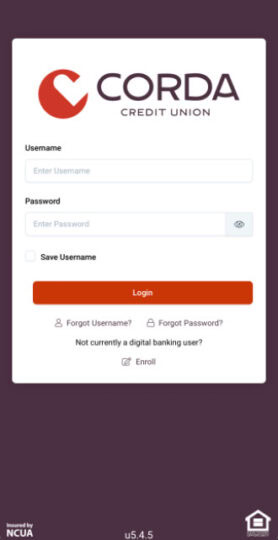
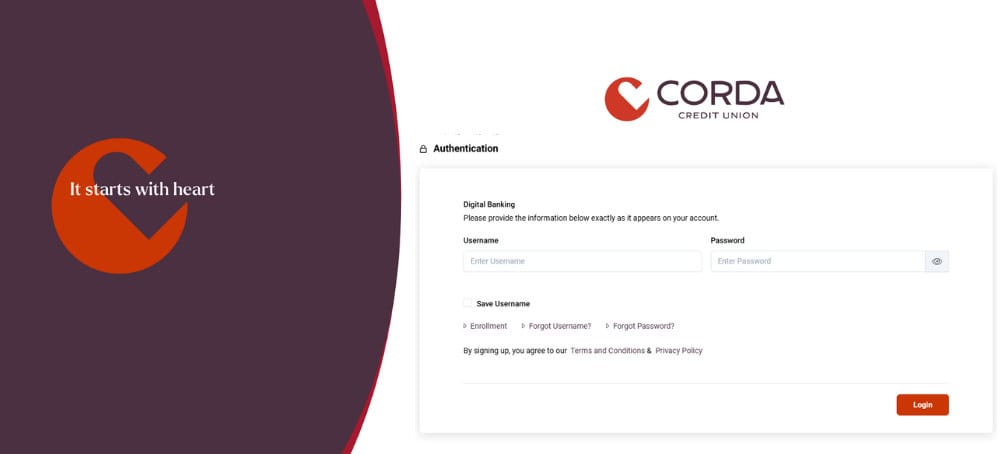
New look to the log-in screen on mobile and desktop
Account Access and Login
No, your current login information will remain the same.
Select Forgot Password on the login screen and follow the prompts to create a new password.
Select Forgot Username on the login screen and follow the prompts to retrieve your username.
No, the login page will be changed, and your current bookmark will no longer work. Once you’ve accessed the new online banking login page, you’ll need to save it as a new bookmark in your browser.
Yes, you will need to set this up again by following the prompts in the app.
For security reasons, please call us at 319.892.7300 to restore access to your account.
No, each person will have their own login based on their Social Security number.
Desktop: In the left navigation bar, go to User Profile, then Change Password, enter your current password, then enter and confirm your new password.
App: Tap the menu icon (☰), then User Profile, then Change Password, enter your current password, then enter and confirm your new password.
Profile and Settings
Desktop: In the left navigation bar, go to User Profile, then Accounts, then click into the text box next to the account you’d like to rename and enter your preferred nickname.
App: Tap the menu icon (☰), then User Profile, then Accounts, select Edit on the account you’d like to rename, then update the account name in the text box.
Desktop: In the left navigation bar, go to User Profile, then Contact Information, select “+ Add Email/Phone,” choose the contact type from the dropdown, enter the updated contact information in the text box, and click Save.
App: Tap the menu icon (☰), then User Profile, then Contact Information, Select + Email/Phone, choose the contact type from dropdown and enter the updated contact information in the text box, then select save.
In order to delete an existing email or phone number, you must first add an additional email or phone number. After adding the new, the old can be deleted.
Desktop: No, at this time, the default view on Desktop cannot be changed.
App: Yes, on the bottom bar, select Settings. Then, under the Home Feature section, click the Accounts dropdown and select your preferred default view.
Desktop: In the left navigation bar, go to User Profile, then Accounts. Select Hide for the accounts you want hidden from view, then click Submit.
App: Tap the menu icon (☰), then User Profile, select Accounts, then select Edit on the account you wish to change the view on. Finally, toggle Hide Account to On.
To Un-Hide, simply select the account you wish to un-hide then hit Submit.
Account Information and Alerts
Yes, your existing alerts will stay the same.
Desktop: In the left navigation bar, select Transactions, then click the Eyeball icon under account name.
App: Tap the menu icon (☰), select Transactions, click on the Piece of Paper icon, then the Eyeball icon next to Account ID.
Desktop: In the left navigation bar, select Transactions, then select Account Overview.
App: Tap the menu icon (☰), select Transactions, click on the Piece of Paper Icon
Desktop: In the left navigation bar, click the down arrow next to Alerts, then select Manage Alerts. Toggle Enroll in Text Banking Alerts? to On and click Submit then OK. Select the down arrow to select the account you want to set an alert for, then select + Alert. Choose between the 4 alert options and complete the required information then hit Submit.
App: Tap the menu icon (☰), click the down arrow next to Alerts, then select Manage Alerts. Toggle Enroll in Text Banking Alerts? to On and click Submit then OK. Select the down arrow to select the account you want to set an alert for, then select + Alert. Choose between the 4 alert options and complete the required information then hit Submit
Transfers, Payment, and Deposits
App: Tap the menu icon (☰) and select Mobile Deposit.
Desktop: In the left navigation bar, click the down arrow next to Transfers, then select External Accounts. Select the down arrow to the far right of CORDA – EXTERNAL TRANSFERS OVERVIEW for full details.
App: Tap the menu icon (☰), click the down arrow next to Transfers, then select External Account. Select the down arrow to the right of CORDA – EXTERNAL TRANSFERS OVERVIEW for full details. Alternatively, select Transfers on the bottom menu bar, then select External from the options shown at the top.
Desktop: In the left navigation bar, click the down arrow next to Transfers, then select Make a Transfer.
App: Tap the menu icon (☰), click the down arrow next to Transfers, then select Make a Transfer. Alternatively, select Transfers on the bottom menu bar.
Desktop: In the left navigation bar, click the down arrow next to Transfers, then select Member to Member.
App: Tap the menu icon (☰), click the down arrow next to Transfers and select Member to Member. Or in the bottom navigation, select Transfers, then select Member to Member at the top of your screen.
Note – you will need the Account Number of the member you are looking to transfer to.
Desktop: In the left navigation bar, click the down arrow next to Transfers, then select Credit Card Payment.
App: Tap the menu icon (☰), click the down arrow next to Transfers and select Credit Card Payment. Or in the bottom navigation, select Transfers, then select Credit Card Payment at the top of your screen. You may need to scroll the top navigation to the left for Credit Card Payment to appear.
No, Bill Pay is not affected by the update.
Support and Miscellaneous
Desktop: In the left navigation bar, select Messages, then select New Message.
App: Tap the menu icon (☰), select Messages, then select New Message.
Desktop: In the left navigation bar, select Dashboard. Rewards will show in the upper right corner of the screen.
App: Tap the menu icon (☰), select Dashboard. Rewards will show near the top of the screen.
To place a travel notice, please download our Card Manager app on the App Store® or Google Play.
Desktop: To enroll in online banking, select the Enrollment button on the log-in screen. From there, you will be prompted to enter your Social Security number and Date of Birth. Then select your preferred delivery method for a temporary identification code, then enter the code. Next, enter the Username and Password you would like to use for your online banking account. Next, review the Digital Banking Terms & Conditions and select the check box. Finally, click enroll then okay.